
Mark Smith
· 12 min read
Building Sandy: a read-aloud tool for how I work
Sandy is a Windows 11 read-aloud app I built for dyslexia support, with Azure AI Speech, sentence-level playback, and click-to-read.
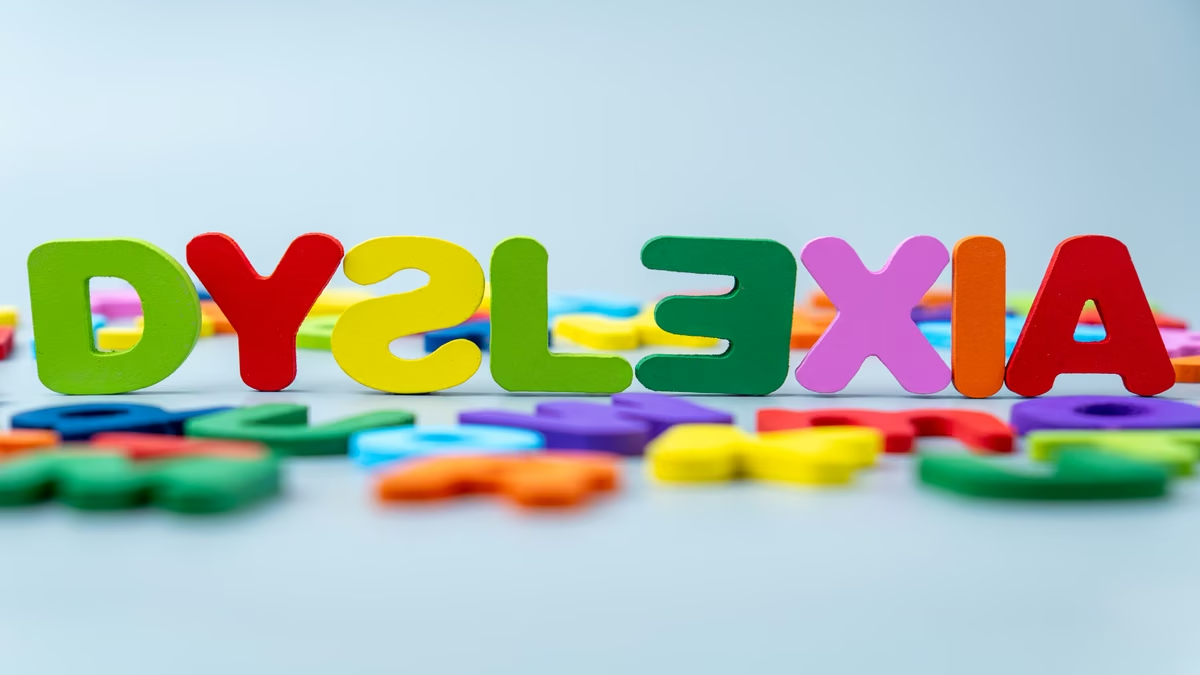
Sandy is a Windows 11 read-aloud app I built because I understand text better when I can hear it and see it at the same time.
Key takeaway
- Read-aloud tools work best when text extraction, speech synthesis, and highlighting are designed as separate problems
- Azure AI Speech gave Sandy the voice quality and word-boundary events needed for smooth read-along highlighting
- The build became reliable once I narrowed the scope to files, web pages, the clipboard, and click-to-read instead of trying to read any arbitrary screen
I'm dyslexic. I read perfectly well, but I read best when I can hear the words at the same time. Audio plus text is how content goes in for me. The two channels reinforce each other, and my comprehension and stamina go up.
Over the years I've leaned on every read-aloud tool I could find: Windows Narrator, Microsoft Edge Read Aloud, Word's Immersive Reader, and a paid app or two. Each one does part of the job. None of them did all of it the way I wanted, in one place, with a voice I could listen to for an hour.
So I built my own.
Its name is Sandy. This is the story of what it does, the decisions that shaped it, the bugs that nearly derailed it, and what I would tell anyone building something similar.
The problem#
I wanted one tool that would read aloud, with the words highlighting in time with the audio, from the sources I use every day: PDF files, Word documents, web pages, plain text, and whatever is on my clipboard.
It needed to live on my Windows 11 machine, start when I sign in, and be there the moment I needed it. And the voice had to be good enough that listening for a long stretch was not a chore.
That sounds simple.
It isn't.
The first fork: "read the screen" is two different jobs#
My first instinct was to build "a screen reader that reads whatever is open." That request contains two different engineering problems:
- Getting the text out.
- Speaking the text aloud.
Speaking is the easier part. Text extraction is harder, because a PDF, a Word document, a web page, and a text file all expose their text differently.
"Read whatever window is focused" sounds powerful, but grabbing text from an arbitrary window is unreliable. Windows UI Automation works beautifully for some apps and poorly for others. The universal fallback is to screenshot the window and run Optical Character Recognition (OCR), which is slower and can garble text.
The decision that made Sandy reliable was a hybrid, file-and-source-first approach rather than a true "read the screen" tool. Sandy reads known sources cleanly. You give it a file, a URL, or the clipboard.
That choice made everything downstream simpler. If you are building in this space, this is the fork that matters most: chasing "read anything on screen" is where these projects get bogged down. Pick the sources you use and read those well.
The architecture, and why it's shaped this way#
A few design decisions carried most of the build.
One reader, one settings store. Voice, speed, font, and colours are set once and used everywhere. Set 1.5x once and every source honours it. No per-mode surprises. This sounds minor, but it is the difference between a tool that feels coherent and one that feels like four different tools stitched together.
A swappable engine interface. Everything that speaks sits behind a small interface: speak, pause, resume, stop, and a word-boundary callback. The reader window and the rest of the app talk only to that interface. The live engine uses Azure today, but there is a no-audio fake engine for testing and offline preview. An offline engine could drop in later without touching the user interface (UI).
Sentence-by-sentence playback. Sandy splits text into sentences and speaks them one at a time. That makes pause and resume reliable, because you resume at a sentence boundary rather than mid-word. It also keeps highlighting aligned.
Naive splitting on full stops is wrong. It breaks on "Mr.", "e.g.", "3.14", and URLs, so Sandy has a small rule-based sentence splitter that handles the common English cases without pulling in a heavy Natural Language Processing (NLP) dependency.
Every sentence remembers its character offset in the original text. That detail matters later, because it is what makes click-to-read possible.
Highlighting follows the audio clock. The speech service fires a word-boundary event as each word is spoken. The naive approach is to paint the highlight when each event arrives, but those events arrive from the network in uneven bursts. The highlight stutters.
Sandy collects the boundaries with their audio timestamps and, on a steady 25 frames-per-second timer, paints whichever word the audio clock has reached. That is the standard karaoke/read-along technique. It is the difference between a highlight that glides and one that jumps.
Choosing the voice: why Azure, and why Ava HD#
The voice was non-negotiable. A robotic voice defeats the point. If it is unpleasant to listen to, I won't use the tool.
I went with Azure AI Speech and specifically the neural high-definition (HD) Ava voice. The HD neural voices are a real step up: natural prosody, comfortable for long listening, and, for this build, support for word-boundary events.
A few practical notes from wiring it up:
- Rate is applied through Speech Synthesis Markup Language (SSML) using
<prosody rate="...">, because the HD voices honour SSML prosody reliably. - Word offsets need translating. Sandy synthesises SSML, so the offsets the Software Development Kit (SDK) reports are positions in the SSML string, including markup and escaping, not in the plain sentence. Sandy subtracts the markup-prefix length and anchors on the expected word position.
- Credentials stay out of the repo. The Azure key and region live in Windows Credential Manager, not on disk and not in source control.
One caveat I am still chasing: occasionally a single sentence's synthesis stalls for about 20 seconds before the next sentence resumes. The likely cause is a per-sentence request timing out, because my Azure region is geographically distant from New Zealand.
I proved it was not a text-extraction issue by capturing the text handed to the speech layer and diffing it. That was its own lesson: when a bug looks like it belongs to one layer, capture the actual data before fixing the wrong layer.
The Windows 11 app and the Fluent UI#
Sandy is a PySide6 desktop app that lives in the system tray and starts at sign-in. PySide6 is the Python binding for Qt, which made it a practical choice for a Windows desktop tool that I could build quickly.
It is a single, focused window: a URL row at the top, a large reading surface in the middle, and controls at the bottom. Read, Pause, Stop, Paste, Read, six speed buttons from 0.7x to 2x, and Light, Dark, and Auto appearance modes.
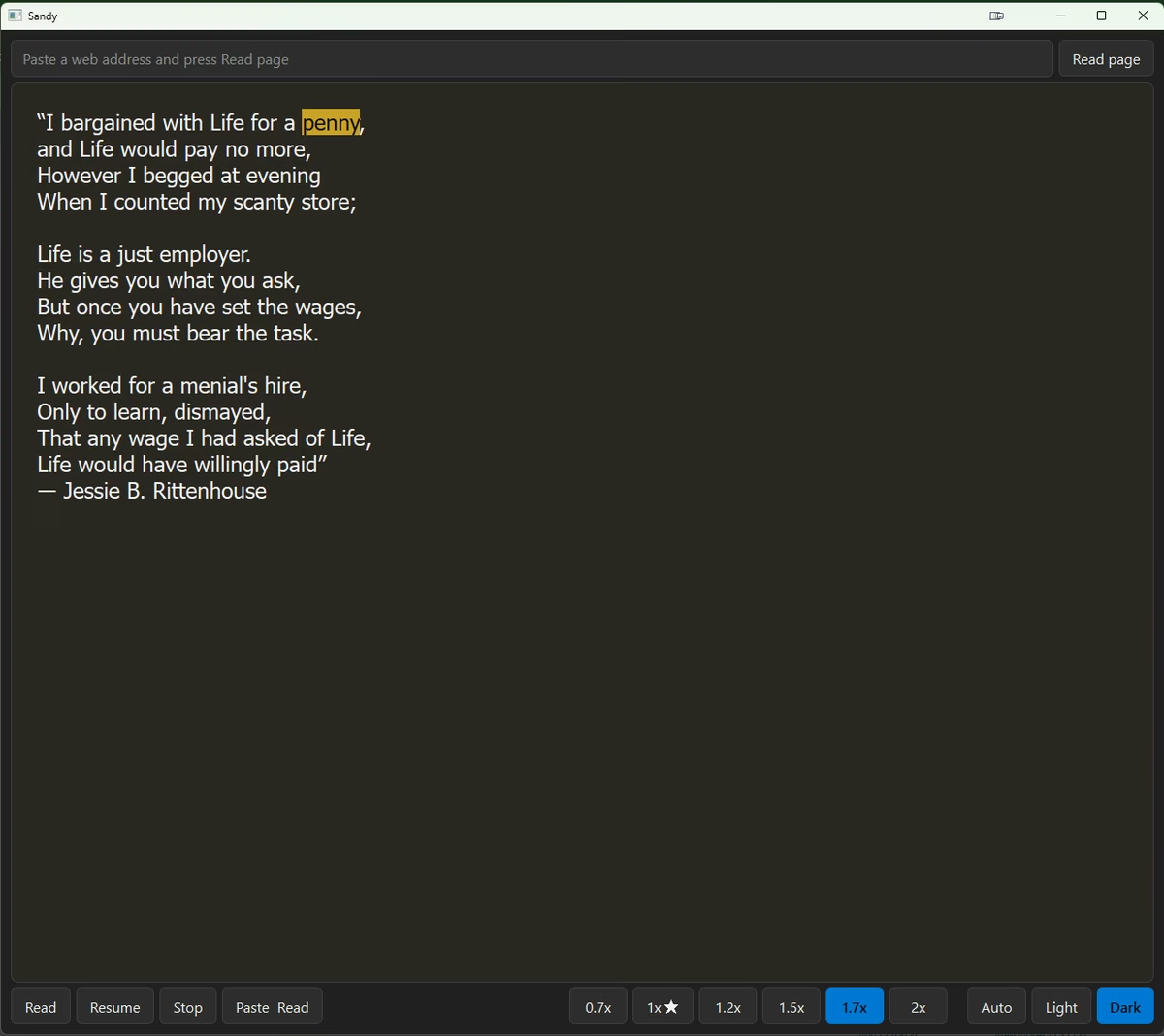
When I first saw it working, I wanted it to feel like a current Windows 11 app and honour light and dark mode. That meant a real decision and a limitation. Sandy is Qt, not native WinUI, so I cannot drop in Microsoft's Fluent component library.
What I could do, and did, was build a Fluent-aligned experience: detect the Windows light/dark setting and follow it, use a Fluent-style neutral palette, use the Windows accent colour for the selected speed, round the controls, and give everything comfortable spacing.
The result reads as a modern Windows 11 app without pretending to be native WinUI.
There is one accessibility-driven choice in the design. In light mode, the reading surface is a warm, low-glare cream rather than stark white. In dark mode, it becomes a soft dark surface rather than pure black, because pure black can increase halation around text and cause eye strain.
Small choices, but this is an accessibility tool first.
The bugs that taught me the most#
Three bugs shaped the build.
Stop did nothing. Pressing Stop appeared to be ignored. The cause was that the worker thread was blocking on speak_ssml_async().get() until the whole sentence finished, so the stop signal could not cut in until the current sentence ended. The fix was to start synthesis asynchronously and poll with a short, interruptible wait, so Stop cancels mid-sentence.
The lesson: a blocking call on a worker thread will eat your responsiveness.
Pause restarted from the top. Pause stopped the audio, but pressing play again began the whole document over. There was a resume() method written, but nothing called it. The play button always called speak(), which resets to the start. The fix made Pause a proper toggle that calls resume() and continues from the current sentence.
The lesson: "pause" and "resume" are different verbs. Make sure the UI calls the second one.
The packaged app could not find its companion. The browser-integration piece needs a small native messaging host, which is a companion program the browser launches. Registering it the easy way recorded a path inside my Python virtual environment. That worked on my dev machine, then broke as soon as the environment moved.
The fix was to make the packaged app build a real companion executable and register that path. The wiring now survives independently of any development setup.
The lesson: when you package an app, the paths that worked from source often assume a development layout. Test the packaged artefact, not just the source.
The feature I'm happiest with: double-click to read from there#
The most satisfying recent addition is click-to-read: double-click any word and Sandy starts reading from that point.
Before building it, I checked how established tools behave. NaturalReader and Word's Read Aloud converge on the same pattern: click where you want reading to start.
There is a constraint built into Sandy's version. Because Azure synthesises a whole sentence per request, and a sentence's prosody depends on speaking it intact, the natural unit to jump to is the sentence, not the individual word.
So a double-click starts reading from the beginning of the clicked word's sentence. That is what the leading tools do in practice, and it sounds far more natural than trying to start mid-sentence.
It works whether Sandy is idle, playing, or paused. Single-click and text selection still behave normally. I chose double-click deliberately because assistive tools should not jump around every time someone rests a cursor.
This is where the earlier sentence-offset decision paid off. A click gives you a character position. Mapping that to the sentence and telling the engine to start there was a small change because the offsets were already tracked.
What I'd tell you if you're building something like this#
- Narrow the problem before you write code. "Read anything on screen" is a trap. "Read the sources I use, well" is shippable.
- Hide the speech engine behind a small interface. It made testing possible and keeps the door open for an offline voice later.
- Invest in the middle layer. Sentence splitting, offset tracking, and clock-synced highlighting are invisible when they work and painful when they do not.
- Treat the voice as a first-class requirement. If the output is unpleasant, the tool goes unused.
- Keep secrets out of the repo from line one. Credential Manager, not a config file.
- Test the packaged build, not just the source. The gap between "works on my dev machine" and "works as a shipped app" is real.
- Capture data before fixing the wrong layer. I almost fixed text extraction for a problem that turned out to be in the speech service.
The outcome#
Sandy is a real tool that I use.
It reads PDF files, Word documents, web pages, plain text, and the clipboard aloud in Ava's HD voice, with each word highlighting smoothly in time with the audio. It follows my Windows theme, lives in the tray, and starts when I sign in. I can double-click any sentence to jump there. A browser extension hands the current page to Sandy, working in both Google Chrome and Microsoft Edge.
There are still things to refine: the occasional synthesis stall and making email-in-the-browser extraction solid. But the headline is simple. I had a way I work best, hearing and reading together, and the tools I could buy only did part of the job.
Now there is one that does it the way I need, because I built it around how I work.
If you are dyslexic, or you retain more when you listen along, build the version that fits you. The hard parts are well-trodden now, the AI-assisted build loop makes the grind manageable, and the result is something you will reach for every day.
If you would like me to publish this tool, get in touch.
Related reading#
- 10 life-changing tools for dyslexics - A practical list of tools that support reading, writing, and daily work.
- Can I build this with AI? - The companion question behind Sandy: when AI can help you build the tool you actually need.
- Digital fluency is about skills, not knowledge - Why practical repetition matters more than knowing the terminology.
Mark Smith is Principal AI Strategist at Cloverbase. To discuss this article or work with me, contact me at Cloverbase.

Mark Smith
Principal AI Counsel · Microsoft AI MVP
Helping people build practical AI skill in the Intelligence Age.
More from nz365guy

What if every marae hosted a piece of the cloud?
A thought experiment in Māori data sovereignty: locally owned micro data centres that return skills, resilience, and a dividend to marae.
An Azure photogrammetry pipeline for less than two coffees
Phase 2 of my property digital twin turns 743 drone photos into maps and models on an Azure VM that exists as billable compute for about four hours a month.

AI checks every mission file before my drone flies
My consumer Mavic 3 has no SDK, so repeatable survey flights depend on mission files. An AI inspection caught unsafe defaults and a 22.88-metre altitude error before...
Discussion
Comments
Loading the discussion for this post.
Leave a comment
Your email stays private. If it matches a Gravatar account, your public avatar can appear after the comment is approved.